USB Cables
USB cables, or Universal Serial Bus cables, are widely used for connecting various electronic devices to each other or to a computer. They provide a standardized interface for fast data transfer, power delivery, and peripheral connectivity. The inherent plug-and-play functionality of USB simplifies the connection process, making these cables an incredibly user-friendly solution across countless consumer and industrial applications.
To better understand these cables, it helps to distinguish their core terminology:
- Connector: This refers to the physical end of the USB cable that plugs into a device or port.
- Port: This is the receptacle on a device where a USB cable's connector is inserted to establish a connection.
- Type: This describes the physical shape and design of the USB connector (e.g., Type-A, Type-B, Type-C, Micro-USB, Mini-USB). Each type is engineered for specific device compatibility.
- Version: This indicates the USB specification (e.g., USB 2.0, USB 3.0, USB 3.1, USB 3.2), which dictates the maximum data transfer speeds and power delivery capabilities of the cable.
USB Connector Types
USB cables have different types and connectors, each designed for specific purposes and device compatibility. Here are some commonly used USB cable types:
USB Type-A
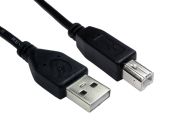
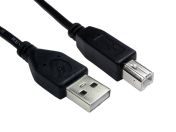
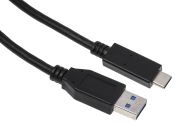
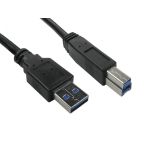
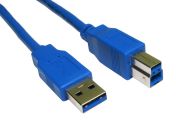
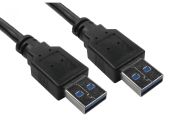
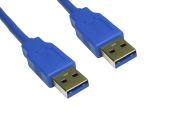
This is the most well-known USB connector, recognized by its rectangular shape and single insertion orientation. You'll commonly find it on computers, laptops, and power adapters, connecting peripherals like keyboards, mice, flash drives, and mobile device charging hubs.
USB Type-B
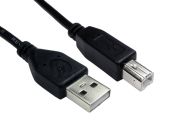
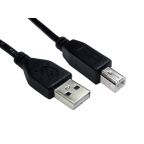
Distinguished by its square shape with beveled corners, the USB Type-B cable’s connector typically serves larger, higher-powered computer peripherals. It's often used for printers, scanners, and external hard drive enclosures, though its use is becoming less frequent with newer, smaller devices.
Mini-USB
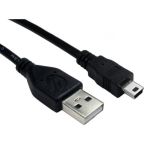
Popular in earlier portable devices, connectors of Mini-USB cables (Mini-A and Mini-B variants) were commonly found on older digital cameras, smartphones, and MP3 players for both charging and data transfer.
Micro-USB
A smaller, more prevalent version today, Micro-USB is widely used for various devices, including smartphones, tablets, digital cameras, Bluetooth speakers, and many other portable electronics. It offers a compact, reversible design (only on the newer Micro USB 3.0 models) for easier insertion and supports both USB 2.0 and 3.0.
USB Type-C
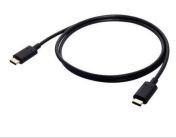
The latest and most versatile connector, the USB Type-C cable’s connector features a compact, fully reversible design and backwards compatibility. It can be used for charging devices, high-speed data transfer, and even video transmission, becoming the standard for modern mobile phones, laptops, and various docking solutions.
How To Tell the Difference Between USB Cable Versions
USB cables are defined not only by their physical connector shape but also by their version, which determines their performance capabilities, especially maximum data transfer speeds in Megabits per second (Mbps) or Gigabits per second (Gbps).
The USB cable you need will depend on the specific devices you want to connect or charge.
USB 1.1
- Video Support: No
- Power Delivery Support: No
- Data Transfer Speed: 12 Mbps
USB 2.0
- Video Support: No
- Power Delivery Support: Yes
- Data Transfer Speed: 480 Mbps
USB 3.0
- Video Support: Yes
- Power Delivery Support: Yes
- Data Transfer Speed: 5 Gbps
USB 3.1
- Video Support: Yes
- Power Delivery Support: Yes
- Data Transfer Speed: 10 Gbps
USB 3.2
- Video Support: Yes
- Power Delivery Support: Yes
- Data Transfer Speed: 20 Gbps
USB 4.0
- Video Support: Yes
- Power Delivery Support: Yes
- Data Transfer Speed: 40 Gbps
Where Are USB Cables Used?
USB cables are fundamental to modern technology, serving a wide array of purposes across various devices and industries, including:
Data Transfer
These cables enable data transfer between devices, whether you're moving files from a computer to a smartphone or vice versa, syncing a digital camera’s data, or connecting external storage devices like USB flash drives or external hard drives to a computer.
Charging Devices
Commonly used for charging devices like smartphones, tablets, smartwatches, Bluetooth speakers, and other portable electronics, USB cables often support varying power delivery standards aligned with the device’s charging profile.
Peripheral Connectivity
For computer users, USB cables are used for connecting a range of peripheral devices to computers. This includes printers, scanners, keyboards, mice, game controllers, webcams, and external monitors.
Firmware Updates
Many electronic devices, from smartphones to cameras and gaming consoles, can use USB cables to receive firmware updates to enhance functionality or address security issues.
Audio and Video Output
Beyond data and power, some USB cables (notably USB-C) support audio and video transmission. This makes them versatile for connecting displays or sound systems to compatible devices.
Programming and Debugging
For developers and technicians, USB cables provide the necessary connection for programming and debugging a wide variety of electronic devices during development and troubleshooting.
For a more in-depth understanding of USB cables and their capabilities, explore our comprehensive Ultimate Guide to USB Cables.
How to Choose the Right USB Cables?
Selecting the ideal USB cable is crucial for ensuring seamless connectivity and optimal performance across your devices. To simplify your choice, consider these key factors:
- Connector Types: Identify the specific connector types on your devices, such as Type-A, Type-B, or Type-C, ensuring a precise match for each end of the cable.
- USB Version & Data Speed: Match the cable's USB version to your devices to achieve the desired data transfer speeds. Opt for newer versions for high-speed requirements.
- Cable Length: Select a length that comfortably reaches between devices, as longer cables can sometimes experience signal degradation.
- Power Delivery Capability: If charging devices, confirm the cable supports the necessary power output, noting that USB Type-C cables generally offer higher power delivery capabilities.
- Durability: For cables subject to frequent movement or bending, prioritize models with reinforced connectors or braided shielding for enhanced protection and longer lifespan.
- Shielding: In environments prone to interference, select shielded USB cables to guard against electromagnetic (EMI) and radio frequency interference (RFI), maintaining signal integrity.
At RS Philippines, you'll find a wide range of USB cables to meet these diverse needs. Browse our selection today to find the perfect cable for your specific devices and applications.
Buy USB Cables Online from RS Philippines
At RS Philippines, we pride ourselves on being a premier supplier and distributor of high-quality USB cables, from Type-A and Type-B to Type-C, in the Philippines.
Our selection includes a wide array of USB cables, including our rigorously tested RS PRO range, designed for robust performance, to products from other globally recognized manufacturers like StarTech.com, and L-Com. Beyond USB cables, we also have a stock of various tools and equipment you may need, such as and cable tracers.
Furthermore, you also benefit from our swift nationwide delivery service for USB cables and other components to help support your projects effectively. For more details on delivery services and fees, please refer to our Delivery page.
Popular Searches
Related links
- In-Depth Guide to USB Cables by StarTech.com
- USB Hubs
- Amphenol Socapex Straight Female to Male- Dual Port Type Type A to Type C USB 3.2 IP68 USB Adaptor
- SICK Male 4 way Threaded to Male USB Type A Sensor Actuator Cable, 2 m
- Midas MCIC-USB 7, 10.1 inch HDMI TFT Displays
- RS PRO Double Gang 2 Way Male USB Type A, USB Type C Faceplate
- SICK Male USB Type A to Male USB Type A Connector Cable, 3 m
- L-Com Straight Plug- Single Port Type Type A, Type B USB Connector